Posts

Showing posts with the label tricks

Dark Fonts and Colors for light theme in VS 11
Image
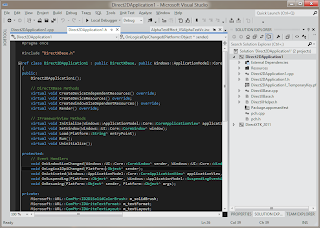
Update: The VS 2012 Color Theme editor has a lot more options and subsumes the functionality of this settings file. Check it out! ——————————————— Visual Studio 11 comes in two themes: dark and light. I like how the code looks in the dark theme (since it is easy on the eyes), but I like how the menus and toolbars look in the light theme (the buttons look sufficiently different from each other.) So if you want to use the colors and fonts of the dark theme with the light theme UI, you would think you could just export out the fonts, change the theme, and import them back in. However, this has the bizarre side effect of causing all the fonts to become bold. So I went into the theme file and manually changed all the BoldFont="Yes" invocations, and finally I have a theme I like. You can download this settings file if you like, it has only the Fonts and Colors, so it should not mess up any of you...

Undeletable folders on Windows 7 after move (part of library)

So the other day I was doing regular housekeeping on my Win 7 desktop, and I was moving stuff around, to make space for all these games I acquired from the steam sale. I move the “Movies” folder from drive G to drive S. The move completes, but there is still a Movies folder in my G drive. I can’t open it. I can’t takeown it. I can’t icacls it. And I am an admin. Turns out – that folder was referenced from a library (the videos library). I opened the video library, clicked on the (8 locations) link, and removed the G:\Movies from the list. Poof! the folder vanished.

Importing contacts from iPhone to Windows Phone 7

So you moved from an iPhone to a Windows Phone 7. How do you move your contacts over? Step 1: Sync your iPhone to your computer, and make sure you sync your contacts (look under data or information in iTunes). Exporting to Outlook or to Windows Contacts would work best. Step 2: If using outlook, go to contacts and export all the contacts to CSV. If using Windows Contacts, go to your Contacts folder on your computer, and hit the “Export” button in the toolbar, and save as CSV. Be SURE to export the Mobile number , which is not selected by default. Step 3: Browse to contacts.live.com, and sign in using the same live id your Windows phone is tied to. Click Manage, then click “Import”. Click Outlook, and then import the file you created earlier. You’re done! The contacts you just added will appear on your phone within the next 30 mins (by default). Update: It appears that there is no easy way to export the phone numbers marked as "iPhone" in your iPhone contacts. Will update if ...